
Three templates cover most situations: a monthly blog grid, a weekly social sheet, and a multi-channel planner. All three are free to copy from Google Sheets, Excel, or Notion. If you're just starting out, the weekly social sheet is the quickest to fill in and the easiest to maintain.
Pick your starting point here:
- Solo marketer or freelancer — use the weekly social sheet (one tab, five columns, done in under an hour)
- Small in-house team (2–5 people) — use the monthly blog grid with an owner column so nothing falls through the gaps
- Multi-channel or agency — use the multi-channel planner with separate rows per platform and a campaign tag column
To copy any of these, open the link above, go to File > Make a copy (Google Sheets) or File > Download (Excel). For Notion, visit the official Notion content calendar templates hub and click Duplicate.
Pro Tip: Don't wait until the template is perfect before you start filling it in. A half-empty calendar you actually use beats a beautifully formatted one you never open.
Key takeaways
A content calendar works best when it starts simple, tracks the nine essential fields, and gets reviewed quarterly to cut what isn't working.
| Point | Details |
|---|---|
| Start with a weekly or monthly template | Copy a free Google Sheets or Notion template and fill in the next four weeks before adding complexity. |
| Track nine core fields | Date, time, platform, status, owner, asset link, CTA/UTM, pillar, and tags are the minimum for a working calendar. |
| Map content to buyer stages | Tagging each entry as awareness, consideration, or decision turns a schedule into a conversion tool. |
| Review and repurpose quarterly | Refresh high-performing past content rather than always creating from scratch to save time and increase ROI. |
| Jarvisandco can set it up for you | From a one-off calendar build to a full monthly content retainer, Jarvisandco handles as much as you need. |
Table of Contents
- What exactly is a content calendar, and how does it differ from a social or editorial calendar?
- Why a content calendar makes a real difference to your results
- How to create a content calendar in six steps (and the nine fields you need)
- Ready-to-use content calendar templates and sample formats
- Which tool should you use to build and manage your calendar?
- How to adapt any template for your business
- Sample filled weekly and monthly calendars
- How Jarvisandco uses content calendars to align creative, SEO, and conversion goals
- Jarvisandco's content calendar and managed content services
- Sources
What exactly is a content calendar, and how does it differ from a social or editorial calendar?
A content calendar is a shared planning document that maps every piece of content you plan to publish, across every channel, over a set period. Think of it as your master schedule: blog posts, social updates, email newsletters, videos, and paid ads all sit in one view.
The confusion with related terms is understandable. Here's the short version:
- Content calendar — covers all channels and content types (the broadest scope)
- Social media calendar — focuses only on social platforms; a subset of the content calendar
- Editorial calendar — focuses on written editorial content (articles, newsletters, long-form); often used by publishers and PR teams
Zapier's marketing calendar guide explains the distinction clearly: a marketing calendar sits above all three, tying campaigns to dates, while the content calendar handles the day-to-day publishing detail underneath it.
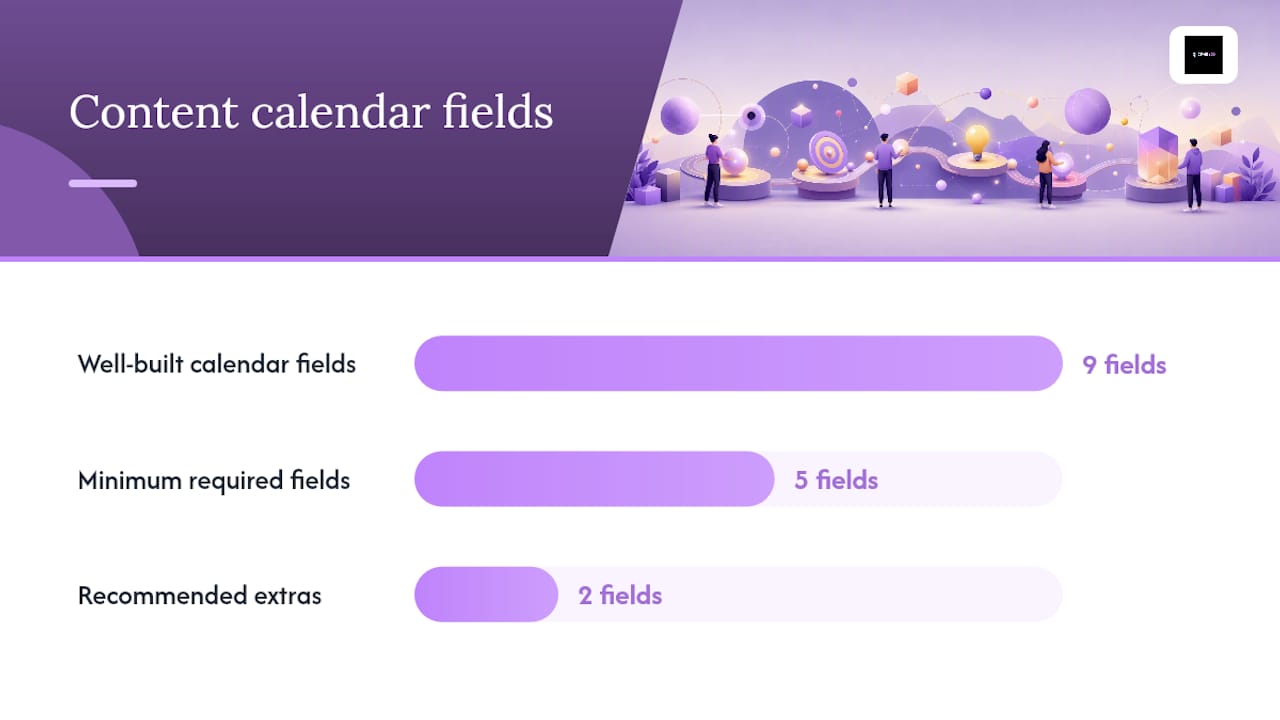
A content calendar is only as useful as the fields it tracks. At minimum, every entry needs a publish date, platform, content type, owner, and status — without those five, you're just making a list.
The nine fields that every well-built calendar should include are: publish date, publish time, platform, status, owner, asset link, CTA or UTM, campaign or content pillar, and tags. Hootsuite's social media calendar guide recommends adding paid-boost flags and format labels (Reel, carousel, static image) once the basics are in place.
Why a content calendar makes a real difference to your results
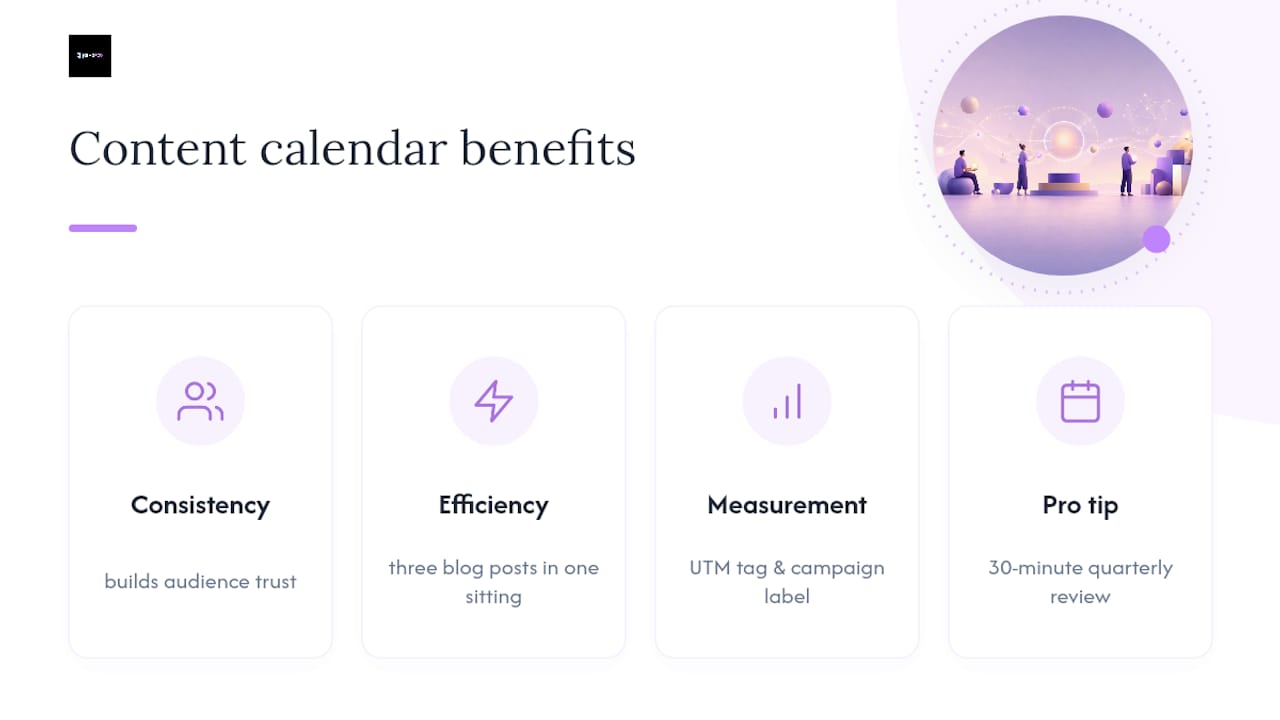
The three clearest business benefits are consistency, efficiency, and measurable outcomes. Posting consistently builds audience trust faster than sporadic bursts of activity, and a calendar makes consistency the default rather than the exception.
Efficiency gains come from batching. When you plan a month ahead, you can write three blog posts in one sitting, brief your designer on a week's worth of graphics at once, and schedule everything before the week starts. That shift alone cuts the time most small teams spend on reactive, last-minute content.
The third benefit is harder to see until you build it in from the start: measurement. When every calendar entry carries a UTM tag and a campaign label, you can trace which content actually drove traffic, leads, or sales. Pipedrive's content marketing calendar guide makes the point that mapping calendar items to buyer journey stages (awareness, consideration, decision) is what turns a posting schedule into a conversion tool.
Pro Tip: Set a 30-minute quarterly review to check which content types drove the most traffic or enquiries. Delete the formats that never performed and double down on the ones that did. Your calendar should shrink and sharpen over time, not grow indefinitely.
How to create a content calendar in six steps (and the nine fields you need)
The simplest way to start is a weekly or monthly Minimum Viable Calendar in Google Sheets: one tab, nine columns, and real entries for the next four weeks. That's it.
The six steps
- Define your goals. Decide what the content is for — SEO traffic, social engagement, lead generation, or brand awareness. Goals determine which metrics you track and which content types you prioritise.
- Pick your cadence. How often can you realistically publish? One blog post per week and three social posts per platform is a common starting point for small teams. Commit to what's sustainable, not what sounds impressive.
- Choose your format. A Google Sheets spreadsheet works for most solo marketers and small teams. Pipedrive recommends starting with a single monthly calendar that lists channel, format, owner, and publish date, then adding filter views as the team grows.
- Set your nine fields. Every row in your calendar should include: publish date, publish time, platform, status (draft / in review / scheduled / live), owner, asset link, CTA or UTM, campaign or content pillar, and tags. Hootsuite's calendar template covers all nine and explains why each one matters.
- Build your approval workflow. Decide who writes, who reviews, and who schedules. Keep it simple: a status column with four values (Draft, In Review, Approved, Scheduled) handles most team workflows without extra software.
- Schedule your reviews. Block a weekly 15-minute check-in to update statuses and a monthly 30-minute session to plan the next four weeks. Quarterly, review performance data and adjust your content mix.
The nine essential fields
- Publish date
- Publish time
- Platform (Instagram, LinkedIn, blog, email, etc.)
- Status (Draft / In Review / Approved / Scheduled / Live)
- Owner (who is responsible for delivery)
- Asset link (Google Drive, Dropbox, or Figma URL)
- CTA or UTM link
- Campaign or content pillar
- Tags (topic, format, buyer stage)
Pro Tip: Batch content by theme day — for example, Monday for blog drafts, Wednesday for social graphics, Friday for scheduling. It cuts context-switching and keeps your calendar moving without daily decision fatigue.
Backlinko's social media calendar guide also recommends keeping an evergreen or repurposing tab alongside your main calendar. High-performing past posts sit there, ready to be refreshed and reshared rather than starting from scratch every time.
Ready-to-use content calendar templates and sample formats
These templates are free to copy and cover the four most common planning needs. The Stacc's free template library offers Google Sheets, Excel, and Notion versions of each.
| Template | Use case | File format | Key fields | Best for |
|---|---|---|---|---|
| Weekly social sheet | weekly social planning | Google Sheets / Excel | Date, platform, format, caption, asset link, status | Solo marketer |
| Monthly blog calendar | 4-week editorial planning | Google Sheets / Excel | Publish date, title, author, keyword, status, URL | Small team |
| Multi-channel planner | Cross-channel campaigns | Google Sheets / Notion | Date, channel, content type, campaign, owner, CTA | Agency / multi-channel |
| Quarterly plan | 90-day strategy view | Google Sheets / Excel | Month, theme, channel, goal, KPI | Marketing manager |
Sample weekly social row
| Date | Platform | Format | Caption (draft) | Asset link | Status | Owner |
|---|---|---|---|---|---|---|
| July | Reel | "Three things your website homepage needs right now" | drive.google.com/… | In Review | Sarah |
Sample monthly blog row
| Publish date | Title | Keyword | Author | Status | Asset link | UTM |
|---|---|---|---|---|---|---|
| July | "How to write a homepage that converts" | homepage copywriting | Luke | Draft | docs.google.com/… | utm_source=blog |
For Notion users, Buffer's Notion-based content calendar template includes collaboration properties (status, author, channel, draft link, last edited) that work well for teams of two to five people. Notion's own template hub lets you duplicate a ready-built calendar view in one click.
Influencer Marketing Hub's content calendar examples guide covers four common formats: spreadsheet tables, monthly grid calendars, Kanban boards, and platform-integrated calendars. Each suits a different team size and workflow.
Which tool should you use to build and manage your calendar?
For most people starting out, a spreadsheet is the right call. Notion works well once you want linked databases and multiple views. Scheduling platforms (Hootsuite, Buffer, Sprout Social, HubSpot) are worth the cost when you need auto-posting and analytics in one place.
Quick recommendation map:
- Solo marketer — start in Google Sheets or Buffer's free tier; add Zapier to auto-log published posts to a tracker sheet
- Small in-house team — Notion for planning and collaboration, Buffer or Hootsuite for scheduling
- Agency or multi-client — Sprout Social or HubSpot for approval workflows, analytics, and client reporting
Zapier sits across all of these as an automation layer. A simple Zap can move a row from "Scheduled" in your Google Sheet to a Slack notification, or log a published post from Buffer into a reporting spreadsheet automatically. Zapier's marketing calendar guide walks through several of these automation patterns.
For content ideas to fill your calendar, Reddog Consulting's content marketing ideas guide is a practical partner resource worth bookmarking alongside your template.
How to adapt any template for your business
The single most important customisation is aligning your template to your content pillars and buyer journey stages. A generic template with no pillar column is just a posting log. Adding a pillar column (for example: Education, Proof, Promotion, Community) turns it into a strategic planning tool. Pair this with your brand messaging framework to make sure every piece of content reflects your positioning.
Before you change anything in a template, answer these five questions:
- Who is your audience, and where do they spend time online?
- What is the primary goal of each channel (traffic, leads, engagement, retention)?
- How often can you realistically publish on each platform without dropping quality?
- Who owns each content type, and who approves before it goes live?
- How will you measure success — traffic, conversions, reach, or something else?
Red flags that a template is the wrong fit
- More than 12 columns — too many fields mean rows never get fully completed
- No owner column — content without a named owner tends to get missed
- No status column — you can't manage a workflow you can't see
- No campaign or pillar tag — you'll have no way to analyse performance by content type
- No reporting tags (UTM or topic) — you can't connect content to business outcomes
Time commitment is worth being honest about. Setting up a basic Google Sheets calendar takes around two hours. A Notion database with linked views takes three to four hours. Platform-integrated tools like Hootsuite or HubSpot can take a full day to configure properly, including connecting social accounts and setting up approval flows. Once running, a solo marketer typically spends 30–60 minutes per week maintaining a calendar; a small team of three to five people spends two to three hours across planning, briefing, and scheduling.
Scale complexity gradually. Start with the five core fields, then add campaign tags in month two, UTM tracking in month three, and a repurposing tab once you have content worth refreshing.
Sample filled weekly and monthly calendars
These two worked examples show how a real calendar looks when it's populated. They demonstrate workflow, tagging, and repurposing in practice.
Filled weekly social calendar (example week)
Filled monthly blog calendar (July example)
Time estimates:
- Initial set-up (Google Sheets, basic fields): 1–2 hours solo; 3–4 hours for a team with shared access and agreed workflow
- Weekly maintenance (solo): 30–45 minutes
- Weekly maintenance (small team of 3–5): 2–3 hours across all roles
Pro Tip: When a post performs well, copy its row into a dedicated "Repurposing" tab and note what made it work (format, topic, timing). Revisit that tab monthly and refresh one or two winners rather than always creating from scratch. This is one of the most effective ways to increase content output without increasing workload. Influencer Marketing Hub's calendar examples guide calls this an evergreen repository, and it's worth building from day one.
For video content specifically, Jarvisandco's video marketing guide for small businesses covers realistic time estimates and scheduling advice that maps directly onto the sample rows above.
How Jarvisandco uses content calendars to align creative, SEO, and conversion goals
At Jarvisandco, a content calendar is the connective tissue between creative work, SEO planning, and conversion goals. Every client project starts with a calendar built around three to five content pillars that reflect the brand's positioning and the buyer journey stages we're targeting.
In practice, here's how we apply it:
- Content pillars first. We map each pillar to a buyer stage (Education for awareness, Proof for consideration, Promotion for decision) so the calendar always has the right mix rather than defaulting to promotional posts.
- Repurposing built in from the start. A blog post becomes a LinkedIn carousel, a short-form video script, and a social caption. The calendar tracks all four versions in linked rows so nothing gets missed.
- Approval workflow in the calendar itself. Status columns (Draft, In Review, Approved, Scheduled) mean the client can see exactly where every piece of content sits without a separate project management tool.
- UTM tags on every link. Every piece of content that drives traffic carries a UTM so we can connect calendar activity to Google Analytics data and show clients which content actually moved the needle.
- Quarterly reviews. We pull performance data every 90 days, identify the top three and bottom three content types, and adjust the next quarter's calendar accordingly.
For clients who want to track how content maps to SEO outcomes, we tie calendar entries directly to target keywords and monitor rankings monthly. Our product page SEO checklist covers the KPI framework we use to measure that.
Jarvisandco's content calendar and managed content services
Planning a content calendar is one thing. Keeping it filled, approved, and published every week is another. Jarvisandco offers a practical middle ground: we set up your calendar, build your content pillars, and can take on as much or as little of the ongoing work as you need.

Our content creation services cover three levels of support:
- Calendar setup only — we build your template, define your pillars, and hand it over with a workflow guide so your team can run it independently
- Ongoing management — we plan, write, design, and schedule your content each month, with a monthly review call to adjust the strategy
- Full content retainer — end-to-end content production including blog posts, social graphics, video scripts, and reporting, tied to your wider website and digital marketing goals
Every package includes a free planning call. Drop us a message at Jarvisandco and we'll get back to you to talk through what you need.
Sources
These are the primary sources referenced in this article. Each one includes free templates, how-to steps, or export formats you can use immediately.
- Social Media Content Calendar: Step-By-Step Guide + Template — Backlinko
- Social media calendar: Step-By-Step Guide + Template — Hootsuite
- Best content marketing calendar for SMBs + Template — Pipedrive
- Free content calendar templates for Google Sheets, Excel and Notion — The Stacc
- Content calendar examples to plan content like a pro +free template — Influencer Marketing Hub
- Content calendar template + how we collaborate — Buffer
- Marketing calendar template and guide — Zapier
- Content calendar templates — Notion